NOTE: If you have a network connection, please unplug from the network before starting installation.

1. First, make sure your computer is set to Boot to CD . This is a different procedure depending on your computer. When your computer first boots look for an option to enter the BIOS settings. Under the BIOS settings find the "Boot Order" and make sure the CD-ROM is set to boot first.
2. With the Windows XP CD in the CD-ROM drive, save your BIOS settings and exit.
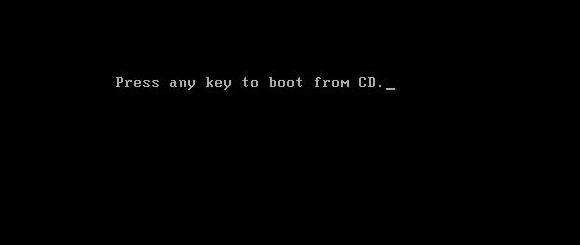
3. Then, you will be asked to "Press Any Key to Boot from CD".
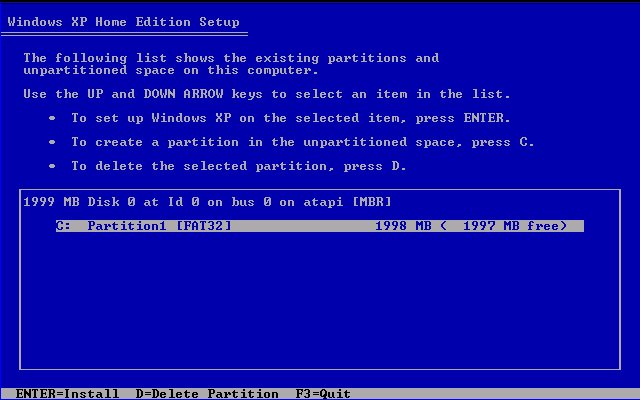
4. After installing the necessary setup files, Windows XP will display your partitions. Delete any existing partitions by selecting the desired partition with the arrow keys, press D to delete and then L to confirm the deletion.
 5. You should now have only one option, "Unpartitioned Space". Press Enter to install Windows XP to the unpartitioned space. 6. When asked how you would like to format the partition select "Format using the NTFS file system".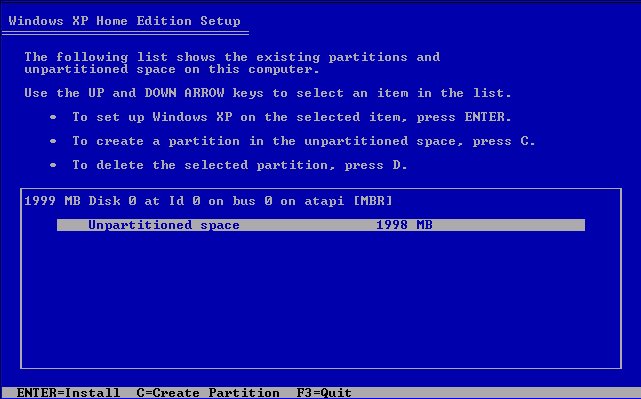
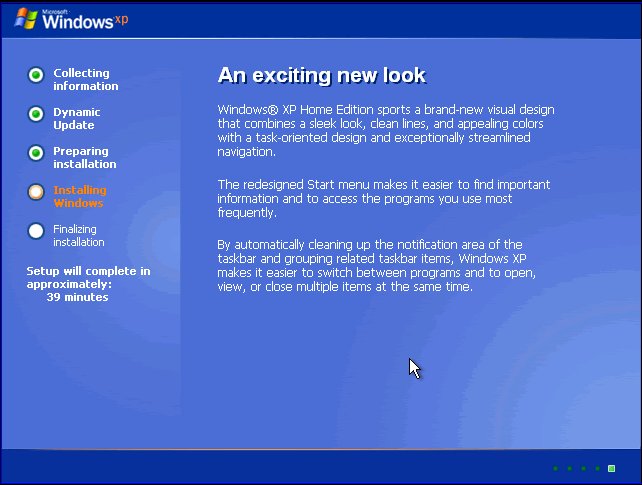
7. After the partition is formatted, Windows XP will begin installation. The computer will reboot. While the computer is rebooting, please do not touch any keys.
8. Enter your product key. If you are formatting using a Windows XP CD that came with your computer, the product key may be located on a sticker somewhere on your computer case.
9. When asked for Network Settings, choose "Typical Settings".
10. Windows XP will now complete installation. Upon completion you will need to re-install the drivers for your hardware. Many PC companies such as Dell, Gateway, and HP will include a "Driver Installation CD" with the computer. Simply insert the CD and follow the instructions. Otherwise, you can download current drivers from many manufacturer's support web sites.
11. Next turn on the Internet Connection Firewall.
12. Reconnect your computer to the Network.
13. Run Windows Update by opening Internet Explorer, then clicking on Tools -> Windows Update. Follow the on-screen instructions for installing critical updates.
14. Restart your computer.
Thats all,Hope it works for you
0 comments:
Post a Comment